
Point of Sale: Your Guide to Choosing the Best POS Software for Your Business
Point of Sale (POS) is no longer just a cash register used to calculate purchase values and print receipts. It has become an integrated system that connects sales with inventory, accounting, customers, branches, payment methods, and reports. When a single sale is recorded, the system can update the product quantity, record the tax, specify the payment method, save the invoice data, and display the transaction within the sales, shift, and branch reports.
The importance of a POS system increases as the business expands, the number of items and employees grows, or inventory and cash discrepancies begin to appear. Choosing a limited or unsuitable software can lead to slow sales, price discrepancies, difficulty matching payments, and a lack of knowledge of true profits.
This guide explains what a POS is, how POS software works, its components and types, the most important required features, and how to link it with accounting, inventory, and electronic invoicing, in addition to the criteria for choosing the best POS software for stores, restaurants, and companies in Saudi Arabia.
What is Point of Sale?
Points of sale are the systems and devices used to complete a product or service sale, record its data, collect its value, and issue the associated invoice.
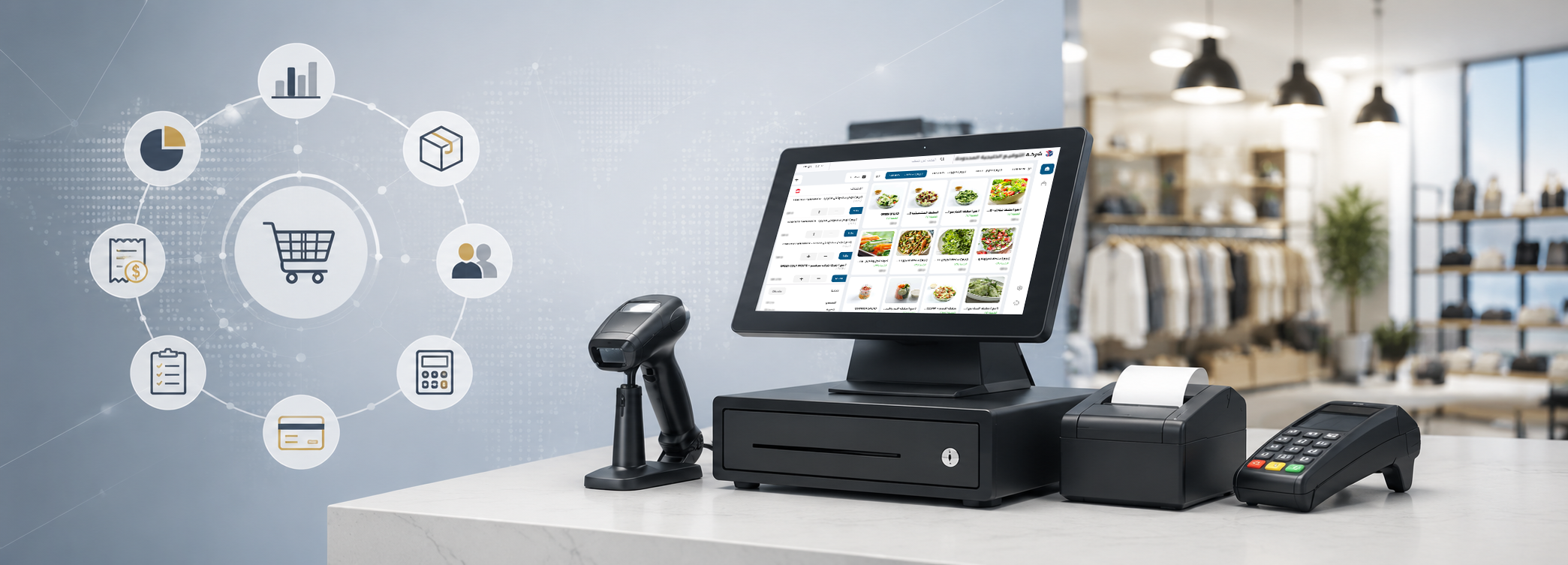
The term POS comes from the English phrase Point of Sale. A point of sale may refer to the place where the customer pays, such as a cashier counter, but it is currently used to denote a system that includes:
- Sales management software.
- Cashier machine.
- Barcode scanner.
- Receipt printer.
- Cash drawer.
- Customer display screen.
- Electronic payment device.
- Products and prices database.
- Inventory management.
- Reports and accounting.
POS software converts the sales process into a digital record that can be tracked and reviewed. Instead of entering the price and calculating the total manually, the system retrieves the product data, applies the tax and discount, then records the payment method and issues the invoice.
POS systems are generally defined as software that combines the hardware and software used to record transactions, collect payments, monitor inventory, issue invoices, and prepare reports.
How does a POS system work?
A POS system works by recording order details and then executing a set of interconnected operations once the invoice is approved.
The sales cycle usually begins as follows:
- The cashier logs into the system.
- Reads the product barcode or searches for it by name or code.
- The system retrieves the price, tax, and available quantity.
- The employee adds the requested products or services.
- The system applies the permitted offers and discounts.
- The customer or employee specifies the payment method.
- The system issues the invoice.
- The sold quantity is deducted from the inventory.
- The transaction is added to the branch and shift sales.
- The system records the transaction's impact on accounting when there is accounting integration.
These steps may seem simple, but the system's power appears in the details. For example, when executing a return, the software should not only refund the amount but also return the quantity to the inventory if it is fit for sale, and record the return's impact on sales, tax, payment method, and the customer's account.
If it is a credit sale, the system can record the amount in the customer's account instead of considering it cash in the drawer. When using more than one payment method for the same invoice, the amount must be accurately distributed among cash, card, transfer, or other methods.
Components of a POS System
A POS system consists of the software that manages operations and the hardware used by the employee and customer during the sale.
POS Software
The POS software is the part responsible for saving product, customer, price, sales, user, and report data.
Its basic functions include:
- Creating sales invoices.
- Searching for products and reading barcodes.
- Managing prices and discounts.
- Supporting multiple payment methods.
- Recording returns.
- Opening and closing shifts.
- Setting user permissions.
- Updating inventory.
- Monitoring branch performance.
- Extracting sales reports.
- Linking with the accounting system.
- Supporting electronic invoicing when needed.
Not all POS software is equal; some do not go beyond issuing invoices, while others offer comprehensive management of sales, inventory, purchases, customers, and accounting.
Cashier Machine
The cashier machine is the device or screen on which the POS software runs. It could be:
- A desktop computer.
- A touch screen.
- An All-in-One device.
- A tablet.
- A mobile phone or portable device.
- A self-service kiosk.
The device must be suitable for the volume of operations and operating hours, because a slow device during rush hours directly affects the speed of customer service.
Barcode Scanner
The barcode scanner helps retrieve the product quickly and reduces errors caused by manually typing codes or prices.
The barcode must be linked to accurate data, including:
- Product name.
- Unit of measurement.
- Selling price.
- Tax.
- Inventory.
- Department or category.
The business may also need more than one barcode for the same item if it is sold in different units, such as a piece and a carton.
Receipt Printer
Used to print the invoice or sales receipt. The required printer varies based on:
- Invoice size.
- Print speed.
- Business type.
- Paper width.
- Connection method.
- The need to print a logo or QR Code.
The print quality of the QR code must be tested, especially for establishments subject to electronic invoicing requirements.
Cash Drawer
Used to store cash amounts, and it may open automatically after completing a sales transaction. No employee should be able to open it without authorization or without recording a transaction.
Customer Display Screen
The customer screen displays products, prices, discounts, and the total while the invoice is being prepared. It helps to:
- Increase the transparency of the sales process.
- Discover errors before payment.
- Display promotional offers.
- Improve the customer experience.
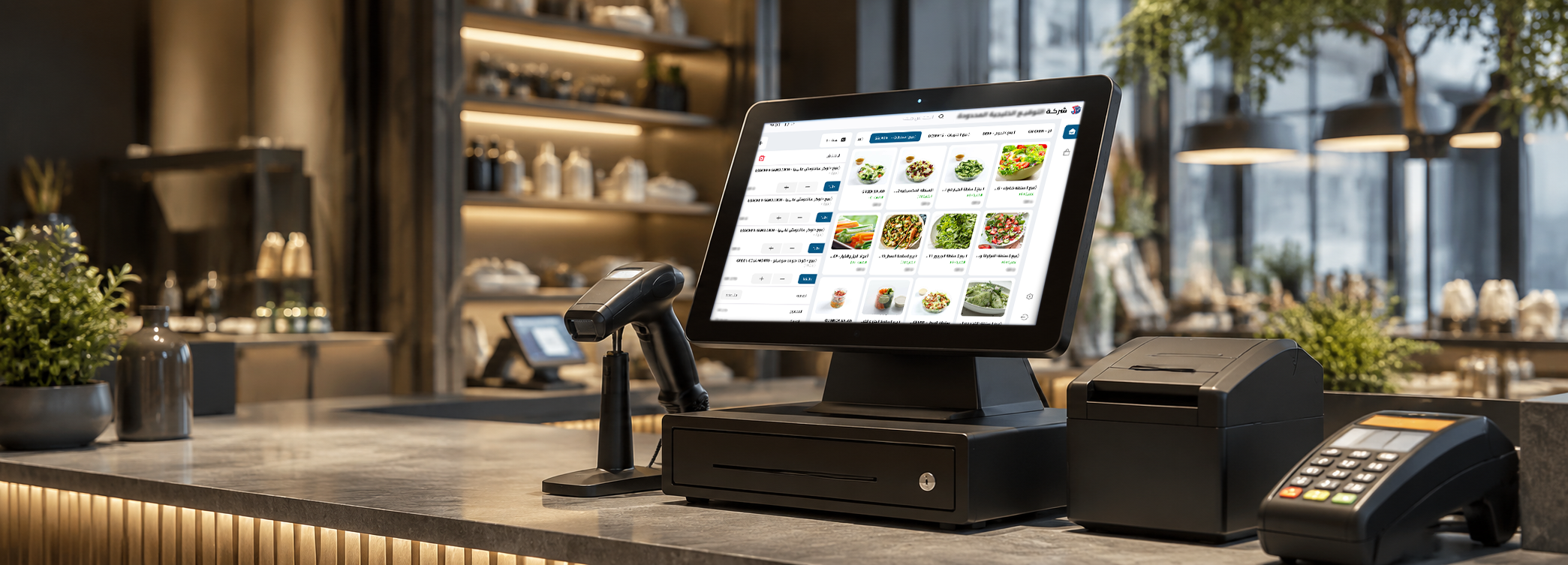
Payment Devices
The payment device may work independently or be linked to the POS software to send the invoice value automatically. Direct integration reduces entering incorrect values into the payment device or recording an incorrect payment method in the system.
Types of POS Systems
POS systems are divided into several types according to the operating location, data storage method, and type of device used.
Traditional POS System
The software is installed on a device or server inside the facility, and data is stored locally or within the branch network.
It may be suitable when:
- The business operates in a single location.
- There is an unstable internet connection.
- The facility has a technical team.
- You need continuous local operation.
However, managing multiple branches or monitoring reports remotely may require additional setups and networking.
Cloud POS System
The cloud system operates via the internet, and data is managed on the service provider's or hosting provider's servers.
Its features include:
- Accessing reports from outside the branch.
- Unifying branch data.
- Centralized updates.
- Ease of adding users.
- Reducing the need for a local server.
- Centralized management of prices and products.
Facilities that need to monitor accounting and branches remotely can obtain the best cloud accounting system in Saudi Arabia from Aamalsoft for Software Solutions.
Mobile POS
Operates on a mobile phone or tablet, and is suitable for:
- Sales representatives.
- Exhibitions and events.
- Restaurants.
- Pop-up stores.
- Delivery services.
- Selling within store departments.
Support for printing, payment, synchronization, and permissions must be ensured.
Self-Service POS
Allows the customer to choose the product or meal, execute the order, and pay through a self-service kiosk.
These systems are common in:
- Quick-service restaurants.
- Cafes.
- Cinemas.
- Retail stores.
- Service centers.
They help reduce congestion, but their success depends on interface simplicity and accurate integration with inventory, the kitchen, and payment methods.
| Type | Key Features | Challenges | Suitable For |
|---|---|---|---|
| Traditional System | Local operation and internal infrastructure control | Managing branches and updates | Fixed store or branch |
| Cloud System | Centralized management and remote access | Reliance on connection | Multi-branch companies |
| Mobile POS | Flexibility and ease of movement | Limitations of some devices | Representatives and events |
| Self-Service | Reducing congestion and speeding up orders | Requires an easy interface | Restaurants and retail |
Importance of POS for Stores and Companies
The importance of POS lies in connecting the moment a product is sold with the rest of the facility's operations, rather than leaving cashier data isolated from inventory and accounting.
Among the most important benefits:
- Speeding up the sales and payment process.
- Reducing pricing and calculation errors.
- Monitoring sales in real-time.
- Knowing the performance of each employee or cashier.
- Controlling offers and discounts.
- Tracking returns and cancellations.
- Managing employee shifts.
- Reconciling cash and cards.
- Updating inventory automatically.
- Comparing branch performance.
- Identifying top-selling products.
- Analyzing the most profitable products.
- Supporting electronic invoicing.
- Maintaining a transaction history.
For example, a store might achieve high sales but not know which products generate real profit.
An integrated accounting system allows comparing the selling price with the product cost, discounts, and returns, providing management with a more accurate picture than relying on total sales alone.
Features of the Best POS Software
The best POS software is not the one with the highest number of tools, but rather the system that fits the daily work cycle and offers the necessary functions easily and accurately.
Fast Sales Interface
The cashier should be able to:
- Access products quickly.
- Read barcodes.
- Search by name or code.
- Add more than one unit.
- Suspend an invoice.
- Retrieve a previous order.
- Change quantities.
- Apply discounts according to permissions.
- Complete payment in limited steps.
A complex interface increases wait times and raises the probability of error, especially when hiring new employees or during rush seasons.
Product and Price Management
The system should support:
- Product categories.
- Barcodes.
- Units of measurement.
- Purchase and selling prices.
- Multiple prices.
- Value-added tax (VAT).
- Cost.
- Available quantities.
- Minimum inventory level.
- Expiration dates when needed.
- Serial numbers.
- Sizes and colors when needed.
Offers and Discounts Management
The system must allow creating offers according to clear rules, such as:
- Discount on a product.
- Discount on the invoice.
- Percentage or amount discount.
- Buy a certain number and get an extra product.
- Limited-time offer.
- Special price for a customer group.
- Vouchers.
- Loyalty program.
It must be defined who can create, modify, or apply a discount so that offers do not turn into a source of revenue leakage.
Multiple Payment Methods
It is preferable for the software to support:
- Cash.
- Cards.
- Transfers.
- Digital wallets.
- Credit sales.
- Mixed payment.
Each amount must appear in the correct payment method report to facilitate reconciling shift sales with cash, payment devices, and bank accounts.
Returns Management
The software should allow linking the return to the original invoice and specifying:
- The returned product.
- The quantity.
- The reason for the return.
- The product's condition.
- The refund method.
- The employee who executed the transaction.
- The transaction's impact on inventory and tax.
Permissions and User Log
An independent account must be created for each employee instead of sharing a single account.
Among the permissions that should be controlled:
- Changing prices.
- Granting discounts.
- Executing returns.
- Canceling invoices.
- Opening the cash drawer.
- Viewing costs.
- Seeing profits.
- Modifying inventory.
- Exporting reports.
- Closing a shift.
Ready to try the system?
Start your free trial or speak with the sales team to help you choose the right solution.
Difference Between a Cashier Machine and a POS System
A cashier machine is one of the physical components used during a sale, while a POS system is the overarching architecture that manages the process, data, and reports.
| Comparison Element | Cashier Machine | POS System |
|---|---|---|
| Definition | The device used at the sales counter | Software, hardware, and database |
| Main Function | Running the sales interface | Managing sales, inventory, and accounting |
| Data Storage | Depends on the installed software | Centralized database |
| Reports | Not generated by the device alone | Provides sales and performance reports |
| Inventory Management | Not available without software | Available when there is an inventory module |
| Branches | Just a device inside the branch | Can link branches together |
| Permissions | Not managed by the device alone | Manages users and actions |
| Invoicing | Requires invoicing software | Issues invoices through the system |
Therefore, it is not enough to buy a high-spec device if the software does not support the operations the business needs. A powerful software also requires hardware suitable for the transaction volume and operating hours.
Get: A cashier machine from Aamalsoft
Importance of Linking POS to Inventory
Linking POS to inventory helps update the product quantity with every sale or return, and reduces reliance on manually entering sales into another software.
The benefits of integration include:
- Knowing available quantities.
- Reducing the sale of out-of-stock products.
- Receiving low-stock alerts.
- Identifying stagnant products.
- Monitoring item movement.
- Managing transfers between branches.
- Facilitating stocktaking.
- Calculating the cost of goods sold.
- Discovering inventory discrepancies.
- Planning purchases.
When a product is sold, the quantity must be deducted from the warehouse linked to the branch. When a saleable return is executed, the quantity is added back to the balance. If the product is damaged, it must be recorded in a separate movement so it does not appear within the available quantity.
An accounting system from DigitalPro offers features to monitor inventory, product movement, manage suppliers and warehouses, along with analyzing sales, items, and profitability.
Importance of Linking POS to Accounting
Linking POS to accounting leads to recording the financial impact of the transaction without manually re-entering sales totals.
Upon completing a sales invoice, the system can record:
- Sales revenue.
- Value-added tax (VAT).
- Payment method.
- Cash or bank.
- Customer account.
- Cost of goods sold.
- Inventory movement.
- Discounts.
- Returns.
Using an accounting system linked to POS helps unify data between the cashier, accountant, and storekeeper.
Smart reporting software can also be relied upon to monitor invoices, returns, employee performance, inventory, revenues, and expenses through centralized reports. The portal page illustrates support for monitoring sales, financial statements, inventory, and customer and supplier account statements.
POS and Electronic Invoicing in Saudi Arabia
Facilities subject to electronic invoicing must use a technical solution that issues and saves invoices electronically and systematically according to the applied requirements.
The Zakat, Tax and Customs Authority (ZATCA) clarifies that an electronic invoice is issued and saved via an electronic system; a handwritten or scanned invoice is not considered an electronic invoice. Invoices are also divided into tax invoices and simplified tax invoices.
Regarding points of sale, one must verify support for:
- Simplified tax invoice.
- Tax invoice when needed.
- Value-added tax (VAT).
- Serial number.
- QR code.
- Saving invoices.
- Credit and debit notes.
- Integration with the Fatoora platform when the facility enters the second phase.
- Configuring invoicing devices and units.
- Processing accepted and rejected invoices.
The second phase of electronic invoicing began gradually on January 1, 2023, and requires linking the taxpayer's invoicing systems to the Fatoora platform after notifying the targeted facility at least six months before the linkage date.
Therefore, it is not enough to settle for the phrase "ZATCA compliant." One must test issuing the invoice, the return, the QR code, and the integration process on actual branch devices.
POS Software for Restaurants
A restaurant needs specialized POS software because the sales process is not linked only to products, but to tables, the kitchen, recipes, delivery, and order types.
It is preferable for restaurant POS software to support:
- Dine-in orders.
- Takeaway orders.
- Delivery.
- Table management.
- Transferring and merging tables.
- Splitting the invoice.
- Adding order notes.
- Routing items to kitchen stations.
- Kitchen Display Systems (KDS).
- Electronic waiter.
- Digital menu.
- Self-service kiosks.
- Recipe management.
- Calculating meal costs.
- Monitoring waste.
- Integration with delivery apps.
- Sales reports by order channel.
An accounting system for restaurants and cafes from DigitalPro provides a touch-supported sales interface, internal order management, takeaway and delivery, tables, splitting invoices, routing orders to the kitchen, and supporting KDS systems.
In addition to tools for monitoring inventory, meal costs, sales reports, and profits.
Ready to try the system?
Start your free trial or speak with the sales team to help you choose the right solution.
Hardware and Solutions Supporting POS
Operating a point of sale requires choosing devices that suit the business volume, operating hours, and nature of the products.
Digital H6 POS Cashier Machine
The Digital H6 POS cashier machine offers an All-in-One design customized for retail stores, restaurants, and corporate environments.
The device page indicates that it includes:
- Intel Core i5-5200U processor.
- 8GB RAM.
- 128GB SSD storage unit.
- Primary LED screen.
- Possibility to add a second customer screen.
- Unified design reducing equipment space on the counter.
This device is compatible with cashier, sales management, and inventory software, with the ability to use the second screen to display the invoice to the customer.
LCD Digital Display Screens
LCD digital display screens can be used to show prices, offers, images, and videos inside the store.
The product page indicates the possibility of:
- Updating content remotely.
- Linking screens to products.
- Managing screens centrally.
- Designing promotional templates.
- Integration with POS, ERP, and CRM.
- Mounting screens on walls, shelves, or ceilings.
This integration helps update prices and offers in a more consistent manner between the sales system and the content displayed to the customer.
Electronic Shelf Labels (ESL)
Electronic Shelf Labels (ESL) are used to display product prices on shelves and update them electronically.
They help to:
- Reduce manual label updating.
- Unify the price between the shelf and the cashier.
- Manage branch pricing centrally.
- Schedule offers.
- Reduce price entry errors.
- Update a large number of products at once.
Additionally, they offer integration capabilities with POS, ERP, and CRM systems, sending price updates in real-time, and providing labels suitable for standard stores and freezing environments.
How to Choose the Best POS Software?
Choosing the best POS software starts with understanding how the business operates, then testing the system using real transactions before subscribing.
Determine the Nature of the Business
Ask:
- Is the business a store, restaurant, or service company?
- Do you use barcodes?
- Do you sell by piece or by weight?
- Are there sizes or colors?
- Do you need expiration dates?
- Do you manage delivery orders?
- Do you have more than one branch?
- Are there credit sales?
Determine the Number of Users and Devices
Determine:
- Number of branches.
- Number of points of sale.
- Number of employees.
- Number of warehouses.
- Working hours.
- Average daily invoices.
- Devices used.
- Required integrations.
Test Key Operations
During the demo, execute:
- Adding a product.
- Reading a barcode.
- Issuing an invoice.
- Applying a discount.
- Using two payment methods.
- Suspending an invoice.
- Executing a return.
- Closing a shift.
- Performing stocktaking.
- Extracting a sales report.
- Adding a user.
- Restricting return permissions.
Review the Reports
The reports should help you know:
- Daily sales.
- Hourly sales.
- Branch performance.
- Employee performance.
- Payment methods.
- Discounts.
- Returns.
- Top-selling products.
- Most profitable products.
- Inventory movement.
- Cash drawer discrepancies.
Test Operation During Internet Outages
Ask clearly:
- Does the sales process continue?
- Where are the invoices saved?
- When does synchronization happen?
- How does the system handle duplicate invoices?
- What happens if the connection drops during payment?
- Do the printer and barcode work offline?
Calculate the Full Cost
The cost includes:
- Software subscription.
- Cashier hardware.
- Printers.
- Barcode scanners.
- Customer screens.
- Branches.
- Users.
- Training.
- Data migration.
- Support.
- Integrations.
- Updates.
Common Mistakes When Choosing a POS System
Among the most prominent mistakes to avoid:
- Choosing the system based on price alone.
- Buying hardware before ensuring its compatibility with the software.
- Not involving cashiers in the trial.
- Ignoring returns and shift closures.
- Using a single account for all employees.
- Not linking the software to inventory.
- Not reviewing electronic invoicing.
- Ignoring operation during connection outages.
- Not cleaning product data before migrating it.
- Not calculating the cost of adding branches.
- Relying on generic reports that do not answer management's questions.
- Granting extensive permissions to employees.
- Not having a plan for data backup and recovery.
- Not testing integration with the online store or payment devices.
Why Choose DigitalPro POS System?
DigitalPro combines the management of point of sale, accounting, inventory, and reports, helping the facility reduce data transfer between separate software.
The system page clarifies that it provides:
- Customizable interface.
- Compatibility with POS hardware.
- Multiple payment options.
- Offers and loyalty program management.
- Saving, printing, and sharing invoices.
- Returns and modifications management.
- Financial and accounting reports.
- Sales and profit analysis.
- Inventory tracking.
- Supplier and warehouse management.
- Performance monitoring from different devices.
You can browse Aamalsoft software solutions to find the system closest to the nature of your business, whether you run a store, restaurant, or multi-branch company.
Facilities looking to connect financial and operational data may benefit from an integrated accounting system that brings sales, inventory, accounting, and reporting together in one environment.
You can request a free version to test the software, or contact us to explain the number of branches, cashier devices, warehouses, and reports your business needs.
Conclusion
Points of Sale help facilities transition from merely recording invoices to managing sales, inventory, accounting, and branches in an interconnected manner. The more suitable the POS system is for the nature of the business, the easier it becomes to speed up sales, reduce errors, control employee permissions, and monitor products, payment methods, and profits.
Ready to try the system?
Start your free trial or speak with the sales team to help you choose the right solution.